About These Images
This guide combines one archived administrator QA screenshot with four annotated interface illustrations using sample data. The illustrations come from the 17 October 2026 documentation set; they are not live screenshots of the latest release. Labels and available controls can differ by package, theme and NAS policy. Each image is identified below.
Read the guide alongside the requirements for your exact release. Example IP addresses, usernames, paths, quotas and snapshot limits are not settings to copy. Select any image to view it at full size.
1. Find Your Storage Service
Open the storage service from your WHMCS Client Area. Check the account information and service status before selecting a protocol. In this illustrated layout, the Services tab groups protocol controls in one place.
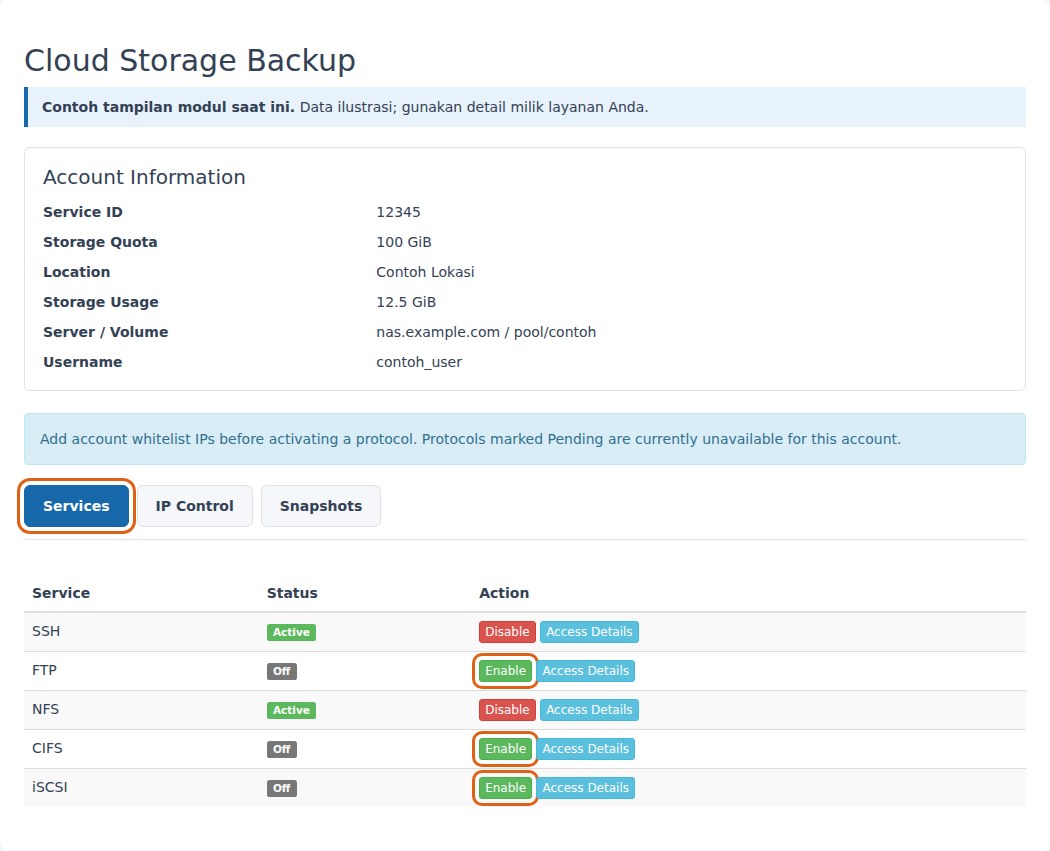
- Confirm that you opened the correct storage service.
- Review the quota, usage and connection identity shown for that service.
- Set the allowed source IP before enabling a supported protocol.
2. Configure IP Access
Use IP Control or IP Access List, depending on your interface version, to manage the source addresses allowed to reach the storage account. Add the address that the NAS actually sees; a device behind NAT may need its public outbound address.
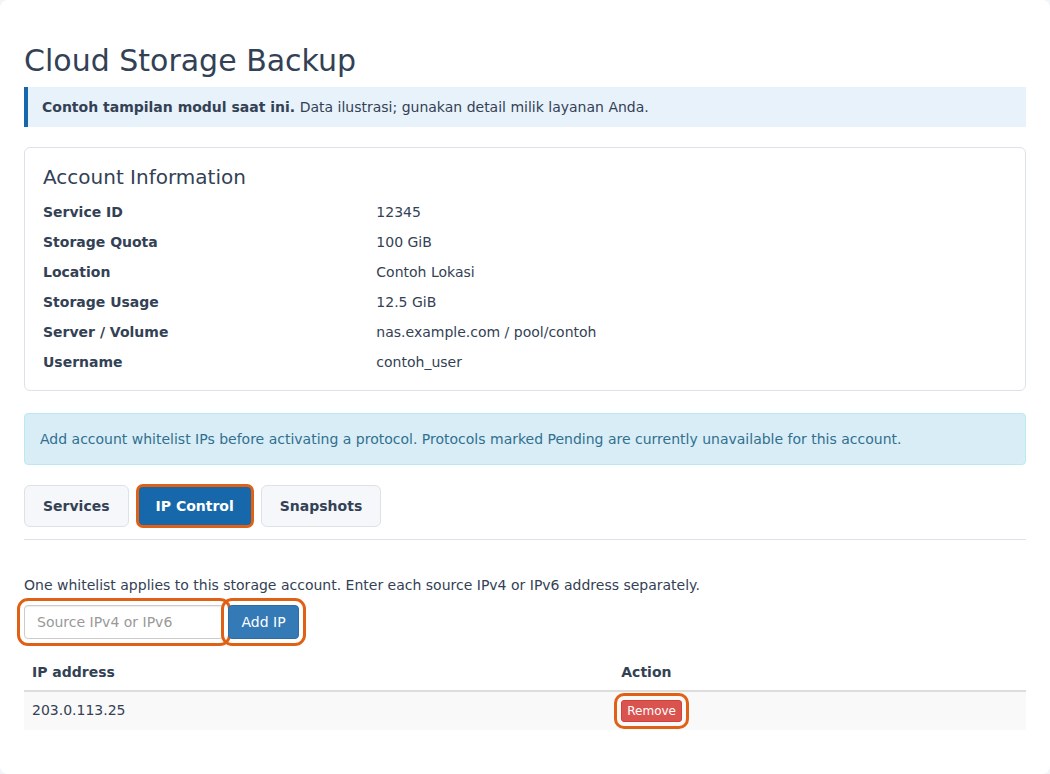
After saving, refresh and confirm the intended entry is present. Read Protocols & IP Access for scope and prerequisites. Removing an address can interrupt access.
3. Read Connection Details
Choose Access Details for the protocol you intend to use. Match the endpoint, port, username and path to your connection tool. Do not substitute the sample values below for the details issued to your service.
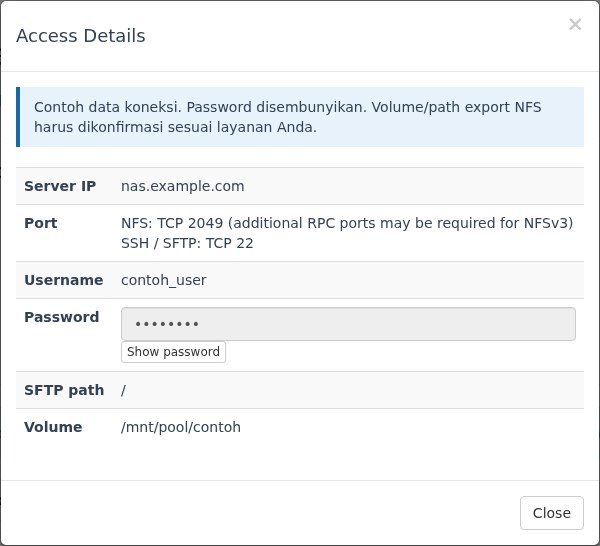
Keep passwords and other credentials private. If a protocol is unavailable, resolve its prerequisites before attempting a connection.
4. Locate Snapshot Controls
Open the Snapshots tab to see the snapshot list and the create action in this illustrated layout. The displayed limit is an example, not a product-wide entitlement.
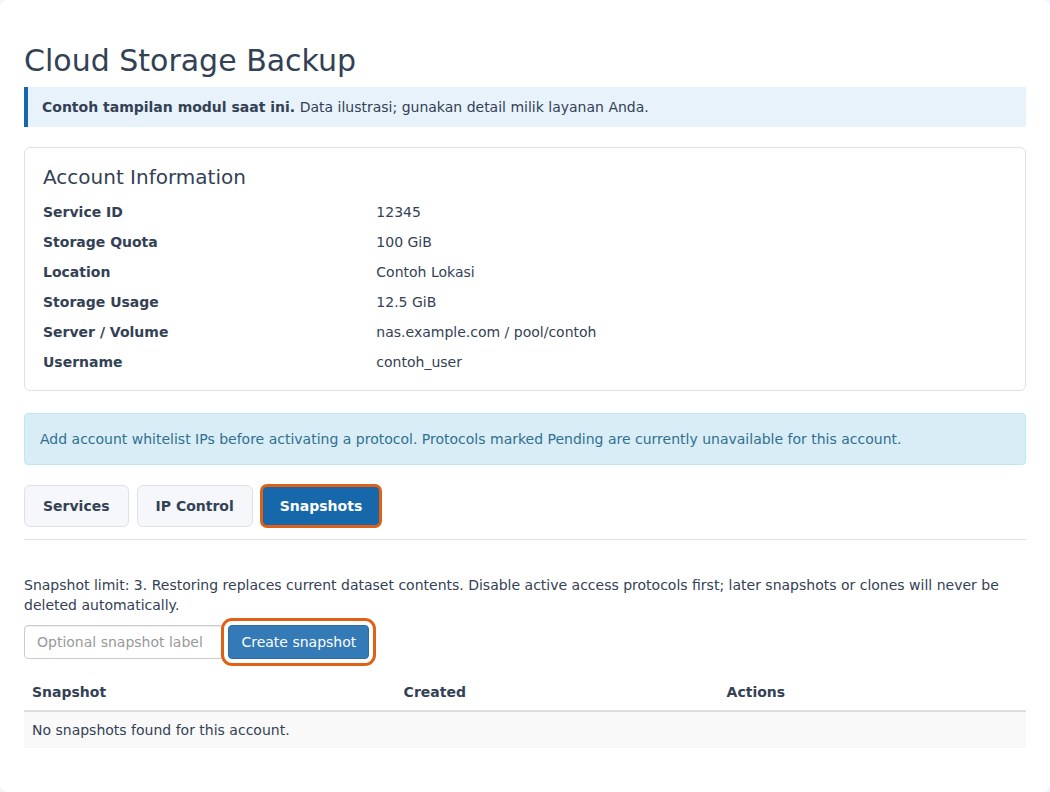
A snapshot restore can replace current data. Follow Snapshots & Recovery for prerequisites and recovery precautions before taking action.
5. Administrator View
The archived QA screenshot below shows IP Access List inside the WHMCS service management screen. It provides a real interface reference for the add and individual remove controls. Its package version and capture date have not been independently verified; it is not evidence of current release compatibility.
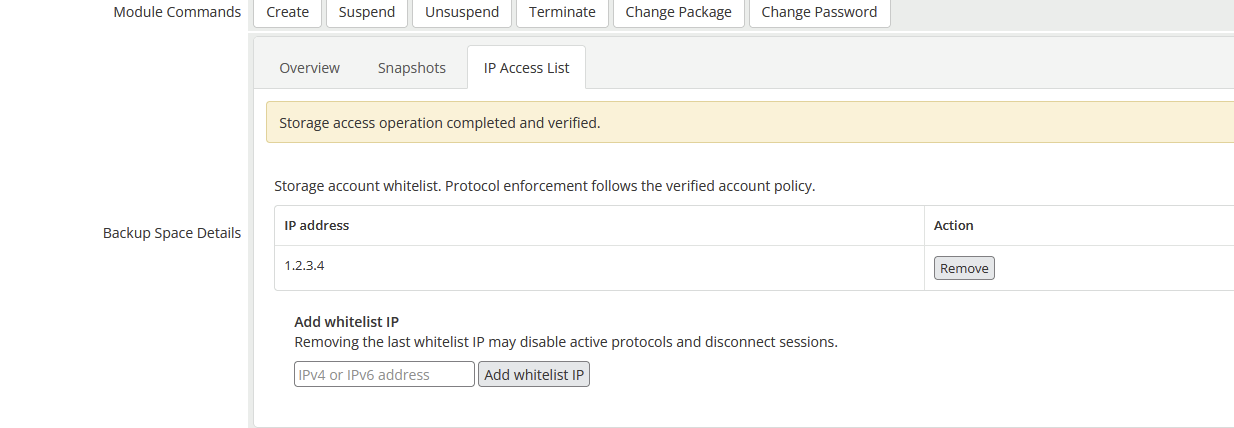
Use only the service you are authorized to manage. The Create, Suspend, Unsuspend and Terminate buttons visible above the panel are service lifecycle commands, not steps required for adding an IP address.
Continue With The Task Guides
- Protocols & IP Access — configure access and read connection details.
- Snapshots & Recovery — understand snapshot and restore prerequisites.
- Troubleshooting — investigate unavailable controls or failed operations.